Draw on your screen as you explain.
Use it in demos, reviews and lessons. Every mark stays editable.
Free · macOS 14+ · Apple Silicon · Public alpha

See how each tool works.
Each clip is a recording of the real app.
Circle

Choose Ellipse and circle a number. The Sketchy style keeps it hand-drawn.
The recording could not play. Try Play again. You can also open the video.
Arrow

Click to place points and press Return. Drag a point to bend the arrow.
The recording could not play. Try Play again. You can also open the video.
Highlight

Drag the highlighter across a line of text.
The recording could not play. Try Play again. You can also open the video.
Smart Draw

Sketch a box or an arrow, and Smart Draw makes it neat. Then type a label.
The recording could not play. Try Play again. You can also open the video.
Shapes

The tool library has shapes, diagram icons, rulers and more. Pick one and drag to draw it.
The recording could not play. Try Play again. You can also open the video.
Spotlight

Turn on the cursor halo and Spotlight. The light follows your pointer.
The recording could not play. Try Play again. You can also open the video.
Zoom

Screen zoom follows your pointer. Use + and − to change how close it gets.
The recording could not play. Try Play again. You can also open the video.
Blur

Drag over a busy picture to blur it. Blur isn’t secure redaction.
The recording could not play. Try Play again. You can also open the video.
And much more.
Annotator has more than 40 tools. Open the tool library with ⌘L or its toolbar button.
Draw
- Select
- Line
- Eraser
Shapes
- Rectangle
- Diamond
- Triangle
- Hexagon
- Star
- Person
- Cylinder
- Queue
- Grid
- Axes
Diagram icons
- Server
- Database
- Messaging
- Web
- Mobile phone
- Desktop
- Laptop
- Document
- Configuration
- Load balancer
- API gateway
- Envelope
- Cart
- Bell
Focus
- Pointer lens
- Pixelate
- Distort
- Solid cover
Extras
- Pixel ruler
- Numbered counter
- Paste image
- Insert image
- My shapes
Style
- Fill
- Gradients
- Dashed lines
- Sketchy lines
- Whiteboard
- Blackboard
How these videos were made
Real Annotator footage with scripted input and sample content. We changed the speed of the clips and added zooms, titles, drawn marks, music and the sounds of the clicks and keys.
The reel starts muted. Its music is “Product Launch Advertising Commercial Music” by lNPLUSMUSIC, from Pixabay.
The tool clips were recorded the same way, on 27 September 2026. They zoom in on each action and play at up to 1.5× speed. Each clip fades back to its start before it repeats.
The Settings clips show real clicks and typing in Annotator’s Settings. They were recorded on 24 September 2026 and play at 1.25× speed.
The toolbar, drawings and effects are recorded from the real Mac app. The pointer follows a script, and the apps under the drawings are made-up samples.
Change the pointer, keys and toolbar.
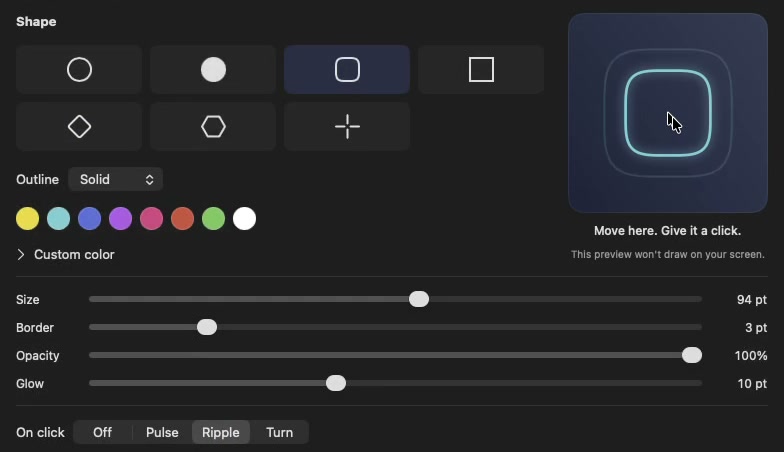
Pointer. Choose a shape, color and glow.
The recording could not play. Try Play again. You can also open the video.
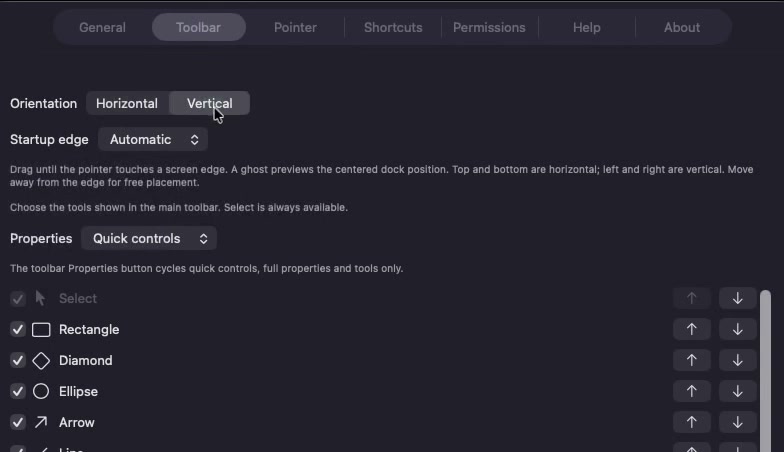
Shortcuts. Change keys and move the toolbar.
The recording could not play. Try Play again. You can also open the video.
Switch between drawing and your app.
- Draw
- ⌃⇧2
- Use apps
- esc
Default keys. Your drawings stay on screen while you use the app. Esc first finishes the text or shape you are drawing.
All tools are free.
Make your first mark.
Download for MacNeeds macOS 14 or later and an Apple M-series chip.
Public alpha 0.1.0-alpha.6 · Release notes
- Download and open the disk image.
- Drag Annotator to Applications.
- Open it. Pick a tool. Draw. It runs from the menu bar.
brew install --cask dorlugasigal/annotator/annotatorScreen sharing and updates
Drawing needs no permissions. Zoom and live effects ask for screen access.
App or window sharing may miss overlays, so ask someone on the call what they see. Hiding or quitting Annotator removes covers, and blur isn’t secure redaction. Remove private details before you share.
Updating? Save your board and quit Annotator first. With Homebrew, run brew update, then brew upgrade --cask dorlugasigal/annotator/annotator.
Not sure which Mac you have? Choose Apple menu > About This Mac.
Download details & compatibilitySee a longer walkthrough
Desktop diagram walkthrough
The longer walkthrough. Sound is optional.
Chapters & recording details
Music: “Chrome Funk” by Punch Deck, CC BY 4.0. Edited excerpt.
Sketch an API and cache using Smart Draw. Place labels inside their shapes. Open the resizable shape library, choose a person and database, then style and connect them. The dashed curve marks a cache miss. Highlight the API, move an annotation and Undo. In a separate browser window, native Blur softens a sample contact card.
This earlier app recording uses the display’s native pixel resolution. A scripted pointer drives it, and the camera follows the pointer’s recorded positions, with the tool choices kept in frame and a short motion trail during camera moves. The footage is sped up; it is not a human recording. The browser and notes contain fictional data. Only controlled windows are captured; no unrelated desktop content is included. Blur is produced by Annotator, not video editing, and is not secure redaction.